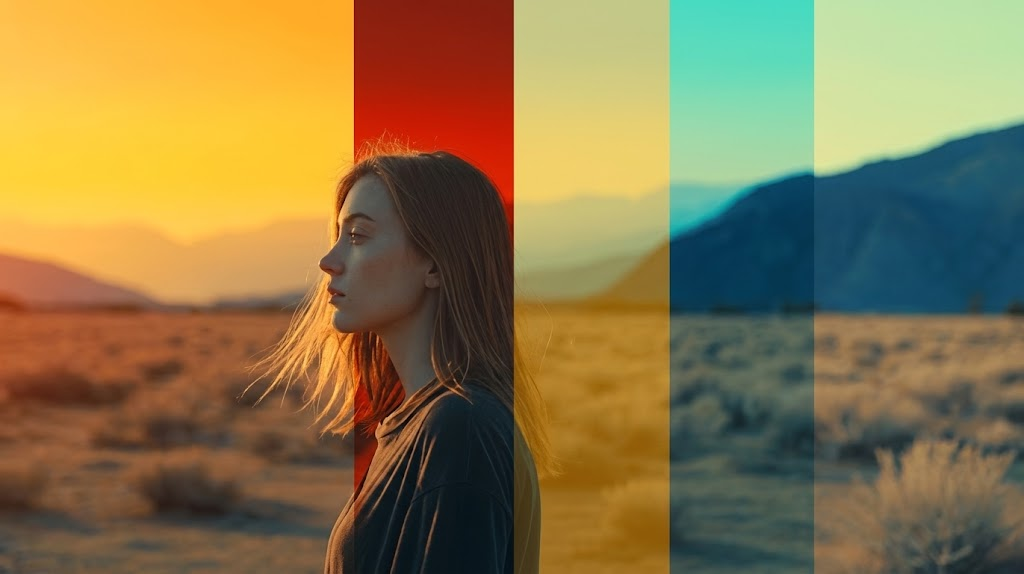
In modern filmmaking and video production, color is far more than a visual adjustment—it is a storytelling language. From cinematic shadows and dramatic contrast to warm emotional tones and stylized palettes, color grading helps shape how audiences experience a scene. Whether you are producing YouTube content, commercials, documentaries, or feature films, mastering color grading can elevate ordinary footage into visually compelling storytelling.
As workflows become more advanced, creators are also relying on specialized hardware tools to improve grading precision and editing efficiency. One notable example is the XPPen Pilot Pro Editing Console, a modern editing controller designed to streamline navigation, timeline control, and creative workflows for editors and colorists. Combined with professional software and proper grading techniques, tools like this are helping creators move from technical correction to artistic expression more efficiently than ever before.
In this guide, we will explore the foundations of color grading, essential technical tools, complete workflows, and common grading challenges faced by editors today.
What Is Color Grading & Why It Matters
Color grading is the process of adjusting and enhancing the color, contrast, saturation, and overall visual tone of footage to achieve a specific artistic or cinematic look.
Unlike basic exposure adjustments, color grading focuses heavily on mood, atmosphere, and storytelling.
Why color grading matters
Color directly affects audience emotion and perception. Different tones can completely change the meaning and emotional impact of a scene.
Examples include:
· Warm orange tones creating comfort, nostalgia, or intimacy
· Cold blue tones expressing isolation, tension, or sadness
· High-contrast grading adding cinematic drama
· Soft pastel palettes creating dreamy or romantic aesthetics
· Dark desaturated looks increasing realism or suspense
In professional productions, color grading also helps maintain consistency between shots captured under different lighting conditions or camera settings.
Without proper grading, even high-quality footage can appear flat, inconsistent, or visually unpolished.
Color Correction vs. Color Grading
Many beginners confuse color correction with color grading, but they serve different purposes.
What is color correction?
Color correction is the technical process of fixing image issues to create a clean and balanced starting point.
Common correction tasks:
· Adjusting exposure
· Correcting white balance
· Restoring natural skin tones
· Matching shots between cameras
· Fixing contrast and saturation problems
The goal is accuracy and consistency.
What is color grading?
Color grading happens after correction and focuses on creative style and emotional storytelling.
Grading examples:
· Creating a cinematic teal-and-orange look
· Applying vintage film aesthetics
· Designing dramatic horror tones
· Building stylized commercial visuals
· Establishing unique visual identities for brands or creators
In short:
· Color correction = technical balance
· Color grading = creative storytelling
Both are essential parts of professional post-production workflows.
Core Technical Tools for Color Grading You Must Master
Professional color grading relies heavily on understanding both software and hardware tools.
Software Tools Every Colorist Should Understand
1. Scopes (Waveform, Vectorscope, Parade)
Scopes are among the most important technical grading tools because they provide objective image data.
Waveform
The waveform monitor displays image brightness from shadows to highlights.
It helps editors:
· Avoid crushed blacks
· Prevent blown highlights
· Maintain proper exposure balance
Vectorscope
The vectorscope measures color saturation and hue direction.
It is especially useful for:
· Skin tone accuracy
· Color balance
· Saturation control
RGB Parade
The parade scope separates red, green, and blue channels.
This helps identify:
· Color imbalances
· White balance issues
· Channel clipping problems
Professional colorists rely on scopes more than monitor appearance alone because displays can vary significantly.
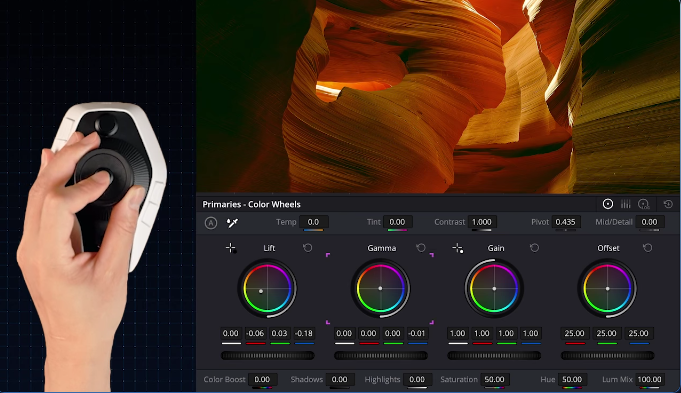
2. Lift / Gamma / Gain
These controls are the foundation of primary color correction.
Their functions:
· Lift adjusts shadow areas
· Gamma controls midtones
· Gain affects highlights
Mastering these controls allows editors to shape contrast and tonal balance precisely.
3. HSL Qualifiers
HSL stands for Hue, Saturation, and Luminance.
These tools isolate specific colors for targeted adjustments.
Common uses include:
· Enhancing skin tones
· Adjusting sky colors
· Separating subjects from backgrounds
· Correcting clothing or object colors
HSL qualifiers are essential for advanced cinematic grading.
4. Power Windows + Tracking
Power windows create isolated adjustment areas within the frame.
Tracking allows those masks to follow moving subjects automatically.
These tools help editors create more targeted visual effects, such as brightening faces, darkening backgrounds, or creating spotlight effects. For projects that require a more distinctive or supernatural appearance, a ghost filter can also add an eerie visual effect without changing the overall grading workflow.
Practical applications:
· Brightening faces
· Darkening backgrounds
· Creating spotlight effects
· Enhancing subject separation
These tools help guide viewer attention within a scene.
5. LUTs
LUTs (Look-Up Tables) apply predefined color transformations.
They are commonly used for:
· Converting LOG footage to Rec.709
· Applying cinematic styles
· Speeding up workflow consistency
However, LUTs should not replace manual grading knowledge.
Hardware Tool (Efficiency Core): XP-Pen Pilot Pro Editing Console
The XPPen Pilot Pro Editing Console is designed to improve editing and grading efficiency through intuitive physical controls and customizable workflow management. Its joystick-based navigation allows smooth timeline movement and precise frame control, making it especially useful during detailed grading sessions. The programmable shortcut keys support major editing software such as DaVinci Resolve and Adobe Premiere Pro, reducing repetitive keyboard actions and improving workflow speed. With its ergonomic layout and compact design, the Pilot Pro helps editors and colorists maintain precision and comfort during long post-production sessions.
The Complete Color Grading Workflow
Professional grading workflows follow a structured process to ensure consistency and efficiency.
Step 1: Organize Footage
Before grading begins:
· Label clips properly
· Group scenes by lighting conditions
· Sync cameras if multiple cameras were used
Good organization saves significant time later.
Step 2: Apply Color Management
Proper color management ensures consistent color interpretation across devices and exports.
Common setups include:
· DaVinci Wide Gamut
· ACES workflows
· Rec.709 pipelines
This step is especially important for LOG footage.
Step 3: Perform Color Correction
Start by balancing:
· Exposure
· Contrast
· White balance
· Saturation
The goal is to create technically neutral footage.
Step 4: Match Shots
Scenes should maintain visual consistency across cuts.
Editors often:
· Match skin tones
· Align brightness levels
· Standardize color temperature
This step prevents distracting visual shifts.
Step 5: Apply Creative Grade
Now the artistic process begins.
Editors can:
· Create cinematic moods
· Add stylized contrast
· Build emotional atmosphere
· Apply film emulation looks
Creative grading transforms footage into storytelling.
Step 6: Final Review and Export
Before export:
· Check scopes again
· Review on multiple displays
· Ensure highlights and shadows remain safe
· Verify skin tone consistency
Quality control is essential for professional delivery.
FAQs about Color Grading
Q1: What is a color-managed workflow, and how do I set it up in DaVinci Resolve?
A color-managed workflow ensures consistent color from input to export. In DaVinci Resolve, you enable it in Project Settings under Color Management and choose options like DaVinci YRGB Color Managed or ACES.
Q2: Is it better to deliver in Rec.709 Gamma 2.2 or 2.4 for platforms like YouTube?
Gamma 2.2 is usually better for YouTube and web viewing, while 2.4 is more suited for dark-room or cinema-style viewing.
Q3: Why does my grade look different after export or on a different screen?
This usually happens due to different screen calibrations and display settings. Using a calibrated monitor and proper color management can reduce the difference.
Q4: Why does my footage turn too blue or green, and how do I fix skin tones?
It’s usually caused by white balance issues. Adjust temperature and tint, and use scopes or HSL tools to correct skin tones accurately.
Conclusion
Color grading is where technical precision meets creative storytelling. It transforms raw footage into emotionally engaging visual experiences while helping creators establish unique cinematic styles.
From mastering scopes and correction tools to building complete grading workflows, understanding both the technical and artistic sides of grading is essential for modern editors and filmmakers.
At the same time, hardware tools are becoming increasingly important for workflow efficiency. The XPPen Pilot Pro Editing Console helps streamline editing and grading processes through intuitive joystick navigation and customizable controls, making it a valuable tool for both beginner creators and professional colorists seeking faster and more precise post-production workflows.
